 videoloop.app
drop a video, image or PDF to play
MP4 · MOV · WEBM · MKV · PNG · JPG · WEBP · GIF · PDF
drop several to build a cue list
Audiomaster 0.0 dB
L
R
−60−36−18−60
peak —
overs
up to +12 dB, with a limiter
Sound plays from this window — the output window is always silent. Level follows every fade, dip and dissolve.
Sign in leaves this page
Loaded media won’t come back?
The armed schedule stops
Notices
Kept in this browser only, newest first: the last 300.
videoloop.app · a show-app.com tool
Drop a video. It plays and loops.
Build a cue list, put it on a second screen, run it on a schedule. All in your browser: nothing is uploaded.
![]() 1 · Drop a clipAnywhere on the page: it plays and loops.
![]() 2 · Build a cue listDrop several, or Load / Import a folder. Enter is GO.
![]() 3 · Open the outputOutput puts a clean window on your second screen.
- 4 · Schedule itSchedule: entries to the second, armed while you watch.
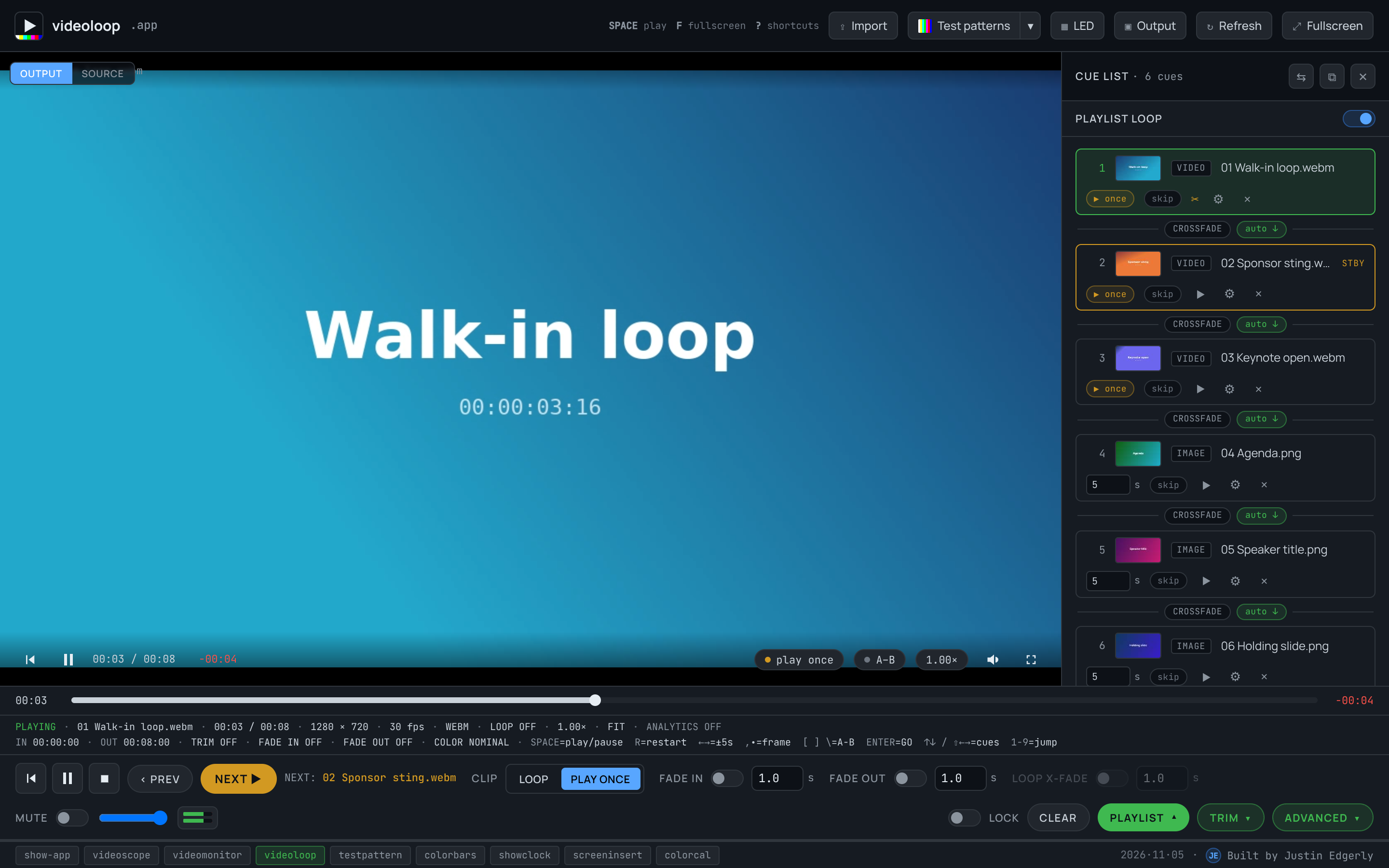 1 · Drop a clip
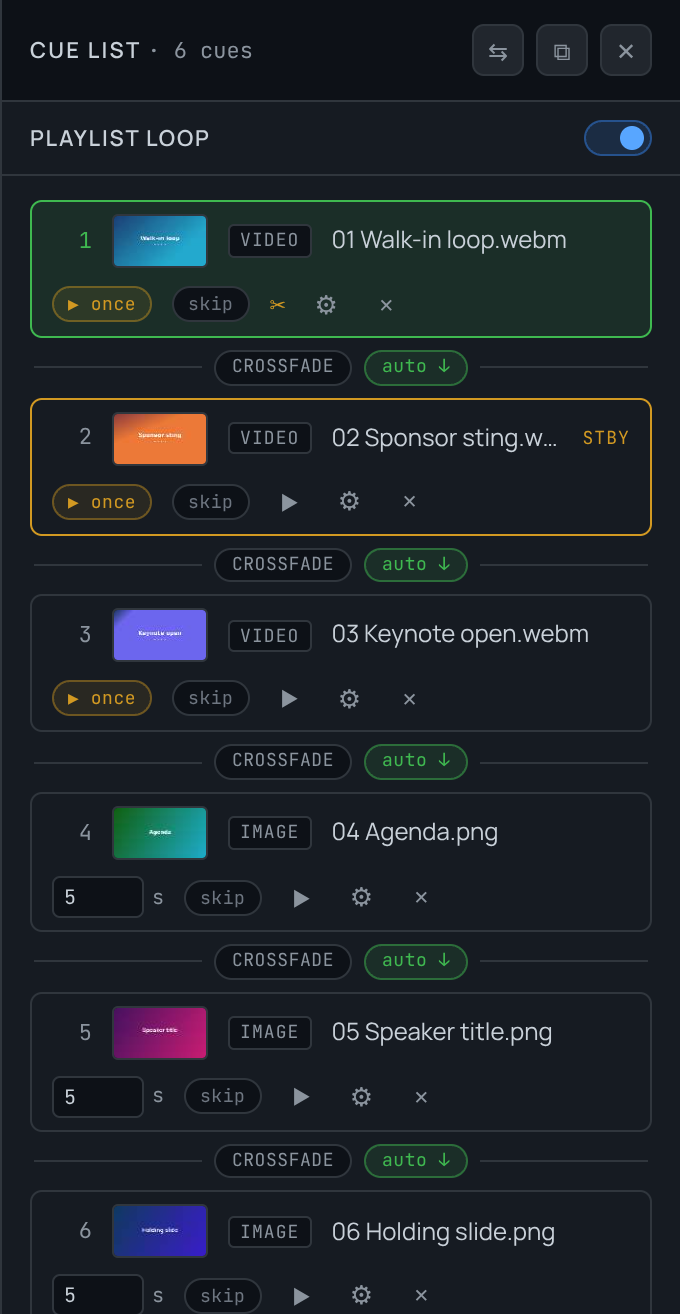 2 · Build a cue list
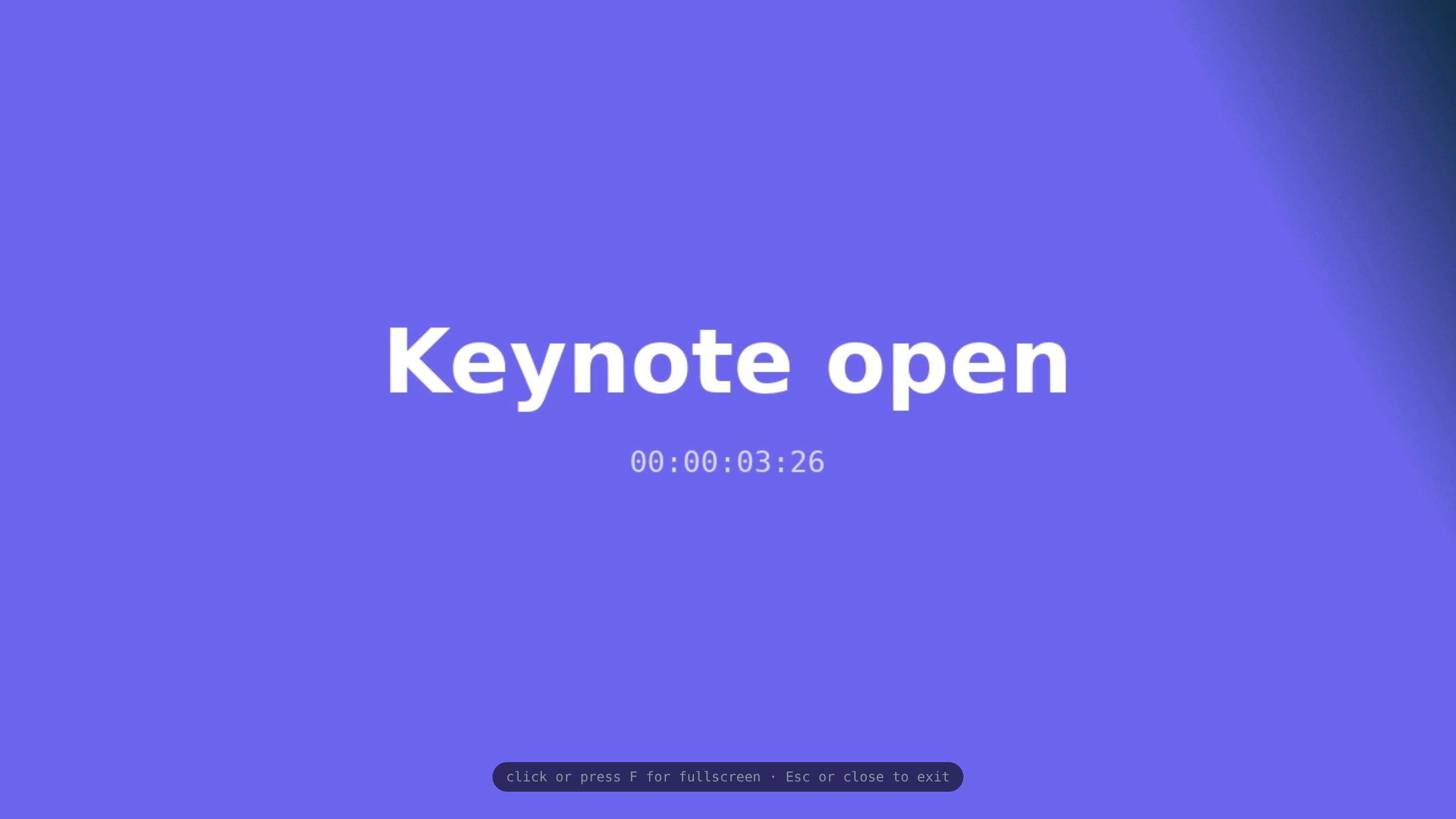 3 · Open the output
Guide in the header brings this back
Close the current show?
Closing disarms the schedule
Save first?
Proof of play
What was on this screen, and when. Kept in this browser only.
| Start | End | Length | Entry | On screen | By |
|---|
Kiosk setup
So the screen comes back by itself after a power cut. The computer does the starting; signplayer does the rest.
- Use Chrome or Edge: they keep your linked media folder (Firefox and Safari can't).
- Open signplayer.app, link your media folder and, when the browser asks, choose Allow on every visit.
- Build the schedule, arm it once, and leave Start the schedule whenever this page opens on.
- Set the computer to never sleep, never turn off the display, and to sign in by itself.
- In the computer's setup (BIOS / firmware), turn on power on after power loss.
- Start the browser at sign-in, full screen, with sound allowed (below, per computer).
- Optional: a heartbeat address (This screen) so a monitoring service tells you when the screen stops.
- Settings → Accounts → Sign-in options: sign in automatically (or use Windows' assigned access).
- Settings → System → Power: screen and sleep Never.
- Make a shortcut in
shell:startupto:"C:\Program Files\Google\Chrome\Application\chrome.exe" --kiosk --autoplay-policy=no-user-gesture-required https://signplayer.app - Windows Update: set active hours around your schedule so it never restarts on air.
- System Settings → Users & Groups: automatic login.
- System Settings → Energy (or Lock Screen): never sleep, display never off; Start up automatically after a power failure.
- Login Items: add an app made in Script Editor with:
do shell script "open -a 'Google Chrome' --args --kiosk --autoplay-policy=no-user-gesture-required https://signplayer.app" - Software Update: turn off automatic installs of macOS updates.
- Raspberry Pi OS (desktop): Raspberry Pi Configuration → auto login, screen blanking off.
- Add to the desktop's autostart (
~/.config/labwc/autostart, or~/.config/lxsession/LXDE-pi/autostart):chromium-browser --kiosk --noerrdialogs --disable-session-crashed-bubble --autoplay-policy=no-user-gesture-required https://signplayer.app - A Pi 4 or 5 for 1080p; 4K clips need a stronger computer.
- Managed devices: the admin console's kiosk mode can open signplayer.app as the kiosk's site, with sound allowed.
- Unmanaged: sign in, open signplayer.app, press Screen (or F11), and turn off sleep in Settings → Power.
Started without sound allowed, the picture still plays; sound starts on the first click or key.
Output lock—
?
- The output follows this window by the lock rule.
- Seeks/s: each seek flushes a decoder — about 0.5 s frozen on a slow player.
- Holds: the output was ahead and paused for the gap.
- Trims: a 1–3 % speed change closing a small gap.
- Aligns: one seek after a new clip or a jump here.
- Stall: the longest gap between frames shown, last 10 s.
- D: the display's frame interval; thresholds are in D.
- readyState 1 just after a seek; 2 when starved.
Remote
Control this screen from a phone, a tablet or another computer: GO, take next, hold, stop.
Signed in on another computer or phone? Open the remote there: this screen is on its list, no code needed.
Stage displayclosed
Message to the stage
Countdown to a time of day
Screens
LED Mode
—
Edge marker
Device pixels of the output screen (or this window's stage when no output is open). With this panel open: arrows nudge 1 px · Shift 10 px · Alt+arrows resize — in fullscreen too, where the panel hides until Esc.
00:00
−00:00
Trim
In point
Duration
Out point
press , / . to step one frame (pauses)
Picture
colour · framing · effects
Editing all clips
Color
Temp preset
Extend edges
RGB
Gain
Lift
Display
Fit mode
Background All clips
off
0°
Effects
Invert
Scanlines
Flip
H
V
Pin top-left All clips
100.0%
0px
0px